Namely
From Namely Matches to a Shortlist You Can Discuss
Turn mutual likes in Namely into a small list worth discussing. See what to keep, what to park, and how the Pro Shortlist differs from partner matches.

AI-assisted · Noah Hart writing voice
On this page
A mutual like is a useful opening. Before adding it to your serious contenders, ask each other: "Would I consider using this as the first name, and what would I need to check?"
In Namely, your partner's liked names appear in the Partner tab, with mutual likes first. The Shortlist is a separate Pro feature where you deliberately save and order candidates. A match does not automatically become a shortlist entry.
Start with the matches you already have. Choose a few to discuss, give each a next step, and leave the rest for later. You can keep that discussion list in shared notes for free, or use Namely Pro's Shortlist for the names themselves.
Check what the match means to each person
Open your saved names and choose Partner. If you have not connected yet, follow the partner connection guide first.
Connected partners can see each other's likes, including names that are not mutual. This is not a hidden ballot. A match tells you that both people tapped like; it does not tell you whether someone meant "interesting", "possible middle name", or "I want to use this".
For each mutual like, finish these two sentences aloud:
- "I would consider this as a first name because..."
- "Before keeping it, I want to check..."
Keep reasons and unresolved questions in your own notes. Namely's Shortlist stores names and their order, not this exercise's discussion notes.
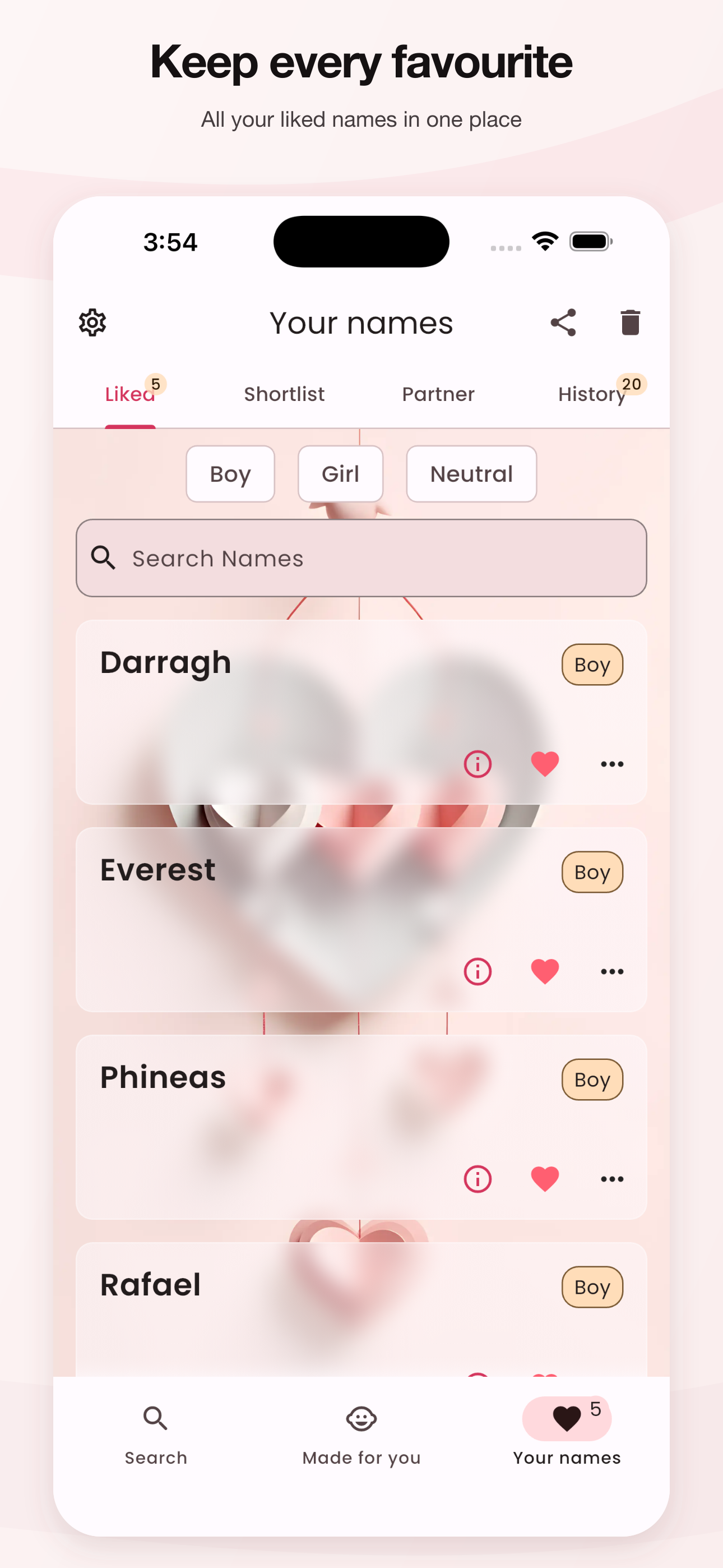
The released Namely 6.1 Liked screen shows where Shortlist and Partner sit. These sample likes do not show a completed match or shortlist decision.
A completed example: three matches, two discussion candidates
Suppose two hypothetical partners have both liked Ellis, Morgan, and Rowan. They want a first name. Their reactions below are invented preferences for this exercise, not facts about those names.
| Mutual like | What the conversation reveals | Decision for now |
|---|---|---|
| Ellis | Both would consider it as a first name. They still want to hear it with their chosen middle and family names. | Keep. Each person will try the full name aloud before the next conversation. |
| Morgan | Both are interested, but one wants to discuss which nicknames they would welcome. | Keep for discussion. Write down each person's preferred everyday form. |
| Rowan | One person liked it only as a middle name and does not want it as the first name. | Park for this first-name shortlist. Keep the middle-name idea in notes. |
Their next discussion list is Ellis and Morgan. Ellis goes first because both are already willing to consider it as a first name. Morgan stays open pending the nickname conversation. Rowan is not a failed match; the two likes meant different things.
This is an editorial exercise. The app does not make these judgments or assign the next checks. If you need a fuller sound test, use the first, middle, and family-name guide.
Put the selected names somewhere useful
If you use Namely Pro, open a selected name's card menu and choose Shortlist. Open the Shortlist tab afterward and confirm the name appears. Repeat for the other candidates you want to keep.
For the example above, add Ellis and Morgan, then put Ellis above Morgan by dragging the entries into order. That order means "discuss this first", not "we have chosen our baby's name".
The in-app Shortlist belongs to your account. Adding or reordering a name there does not create a jointly edited ranking for both partners. If you each want the same order in Namely, update your own lists separately. Partner connection also does not share a Pro subscription.
Without Pro, the card menu offers Unlock Shortlist and the Shortlist tab is locked. You can complete the whole conversation in shared notes instead. Write "Ellis: full-name check" and "Morgan: nickname discussion", with Rowan below them as a possible middle name. No purchase is needed for that exercise. The official iPhone listing and Android listing describe Namely's matching and shortlist tools; access to the in-app Shortlist requires Pro.
End the session with a next conversation you can actually have: "Let's compare the full-name test for Ellis and our everyday forms for Morgan tomorrow." You have enough to work on before collecting more matches.