Namely
How to Connect With Your Partner in Namely
Connect with your partner in Namely, send an invite link, accept it on another phone, and start comparing liked baby names and matches.

AI-assisted · Noah Hart writing voice
On this page
- Before you send an invite
- Step 1: Open the partner invite
- Step 2: Send the link directly to your partner
- Step 3: Open the link on the other phone
- Step 4: Accept the invitation
- Step 5: Use the Partner Names tab
- If names or matches seem to be missing
- If you connected the wrong account
- A useful first shared session
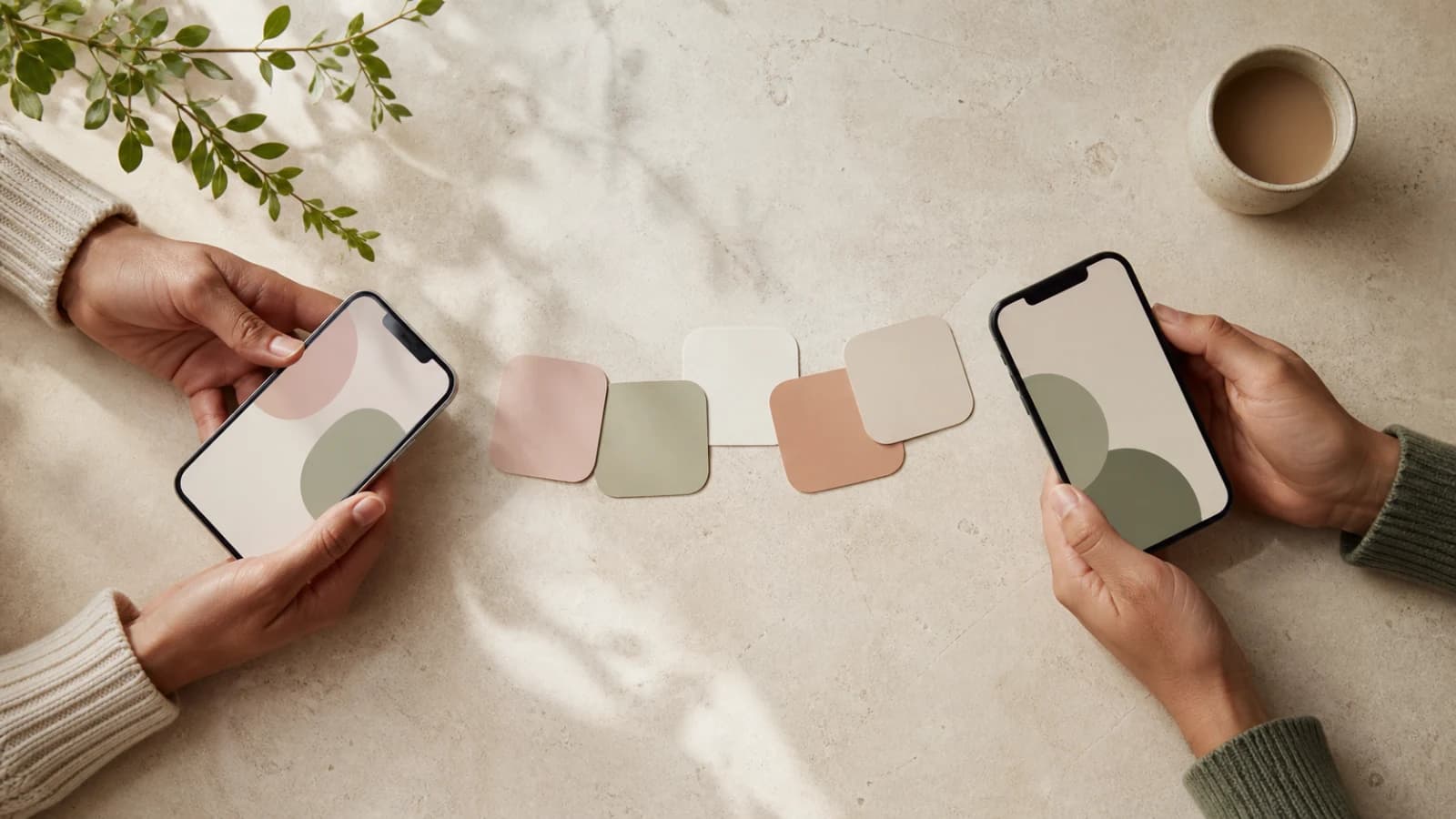
Connecting with your partner in Namely takes one invite link and one acceptance. After that, each of you can explore names on your own phone and compare the names that made both lists.
The current Namely app lets you create an invite from the Partner Names tab or your profile, send it through your phone's share menu, and accept it on your partner's device. The official US App Store listing and Google Play listing both describe partner collaboration and matching.
Here is the shortest route from two separate accounts to one shared search.
Before you send an invite
Connecting shares your liked names with your partner. Each person can see the other's likes, with mutual likes shown first. Complete any exercise that needs hidden reactions before connecting, or keep those reactions in separate notes.
Both people need Namely on their own phone and an internet connection. You can start exploring in a guest session. Creating or signing in to an account protects your progress if you change devices, but the partner connection itself does not require Namely Pro.
Pro access stays with each person's own account. Connecting with a partner does not share a subscription, so each person can use the free features or choose Pro separately.
It also helps if both people update Namely first. That removes an avoidable source of invite-link trouble, especially when one phone has been carrying an older app version for a while.
You do not need to sit together or use the same phone platform. Namely is available for iPhone and Android, and the invite is sent as a web link.
Step 1: Open the partner invite
There are two current paths in the app.
From your saved names:
- Open Names.
- Choose the Partner Names tab.
- Tap Connect Partner.
From your account settings:
- Open My Profile.
- Find the Partner section.
- Tap Invite.
Both paths open the same invite flow. Use whichever one you find first.
Step 2: Send the link directly to your partner
Namely creates an invite and opens your phone's share menu. Send the link through the messaging or email app you already use with your partner.
Treat it like a personal account link. Send it to the intended person rather than posting it in a group chat. Each Namely account currently connects with one partner account at a time.
If you tap the invite button again while the first link is still current, Namely may reuse that active invite. You do not need to keep generating new messages while your partner is finding time to open the first one.
Step 3: Open the link on the other phone
Your partner should open the link on the phone where they plan to use Namely. If the app is not installed, install it, then return to the original message and tap the link again.
Some messaging apps open links inside their own browser. If the link stays on a web page instead of opening Namely, use the steps in the official Namely invite help guide:
- On iPhone, open the link in Safari from the in-app browser's menu, then tap it again.
- On Android, open Namely's app settings, find Open by default or Set as default, and allow supported links.
The exact setting label can vary by Android device. The useful test is simple: tap the invite again and check whether Namely opens.
Step 4: Accept the invitation
Namely shows a Partner Invitation Received screen. Tap Accept Invite to connect the two accounts.
If your partner still needs to finish setup, Namely keeps the invite ready while they begin. Once the invitation is accepted, the app takes them to the partner area.
An invite can stop working if it has expired, been replaced, or already been used. The clean fix is to ask the sender to create a fresh invite. Copying the old link into more browsers will not revive it.
Step 5: Use the Partner Names tab
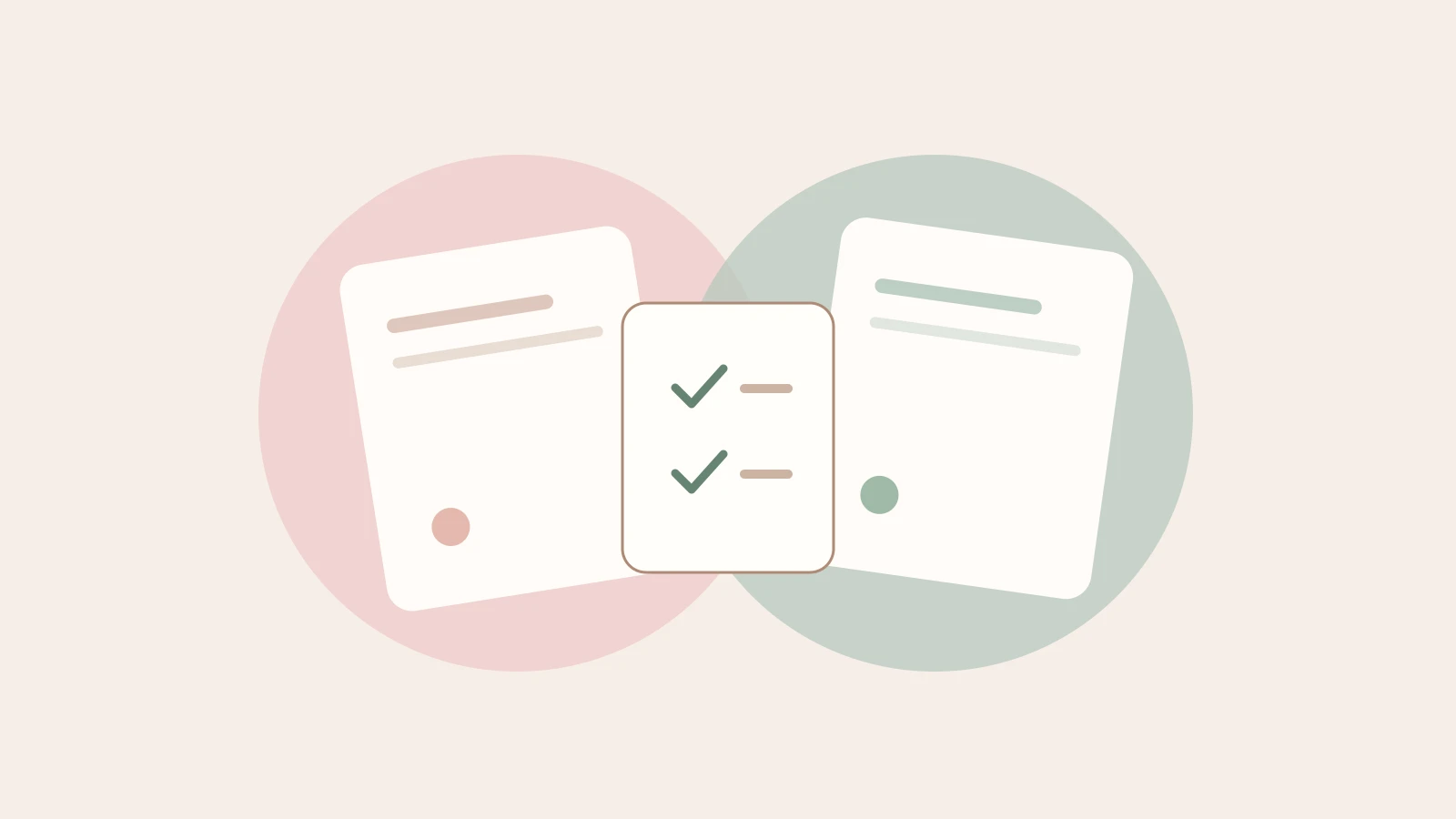
After the accounts connect, keep liking names as you normally would. The Partner Names tab shows your partner's liked names, and names you both liked are brought forward as matches.
That means you do not have to send screenshots or keep two lists in sync by hand. One person can browse on the train, the other can browse later at home, and the shared result is waiting in the app.
There is no prize for producing a giant match list. A better first target is three to five mutual likes. Read them aloud, test them with the full name, and decide what each option still needs before it can become a serious contender.
If you have not built your own list yet, start with the first Namely session guide. If your likes point in different directions, try the different naming styles exercise before either person starts campaigning for a favorite.
If names or matches seem to be missing
Check the basics before rebuilding the connection:
- Confirm each person is signed into the same Namely account they used when liking names.
- Check that the partner connection still appears in My Profile.
- Make sure both phones have an internet connection and have finished syncing.
- Close and reopen Namely, then check Partner Names again.
These checks match Namely's current invite and shortlist troubleshooting guidance. If the problem continues, contact support with the phone type and where the invite link was opened. Those two details make the report much more useful.
If you connected the wrong account
Open My Profile, find the Partner section, and tap Unlink. Namely asks you to confirm before separating the accounts. You can then send or accept a new invite.
Unlinking is also the current route if you need to change the partner account connected to yours. Do it deliberately. It changes which account's liked names you see in the partner area.
A useful first shared session
Once the connection works, keep the next step small:
- Each person likes five names independently.
- Open Partner Names after both people finish.
- Choose up to three matches to discuss.
- Give each match one practical next check, such as pronunciation, full-name rhythm, spelling, or current popularity.
That routine is editorial guidance, not a Namely feature or a naming rule. It simply gives the connection a job. The app finds the overlap; the two of you still decide what the overlap means.